
How To Add a Recipient To Send Cryptocurrency
- 1
Step 1:
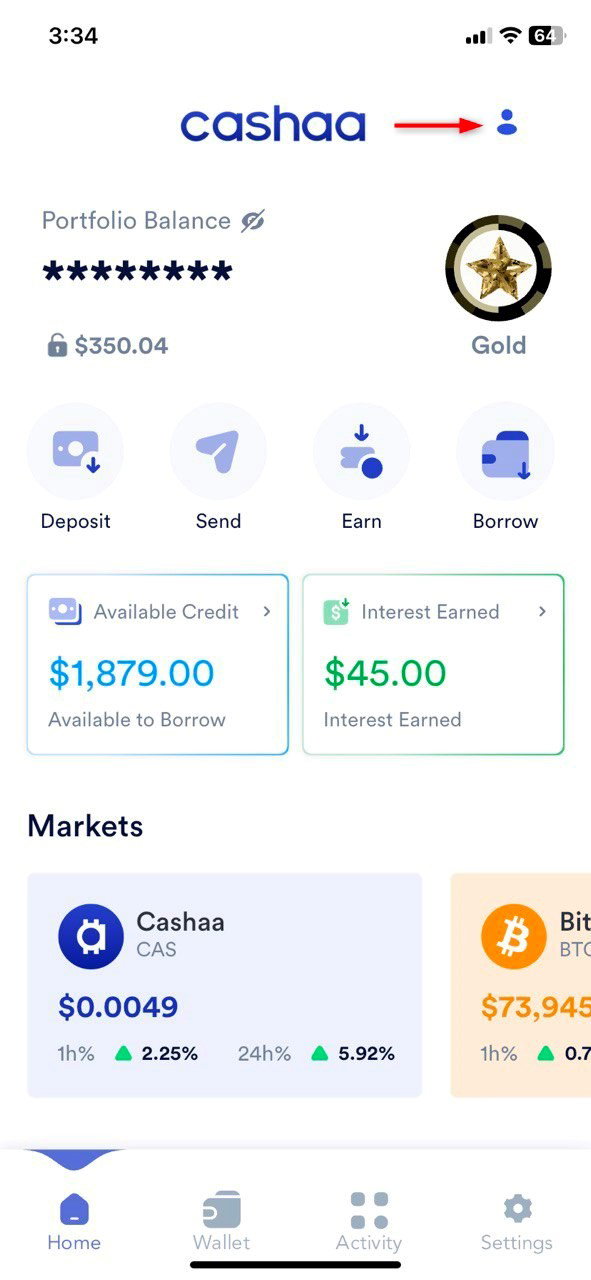
Click on the profile icon as shown in the image below
- 2
Step 2:
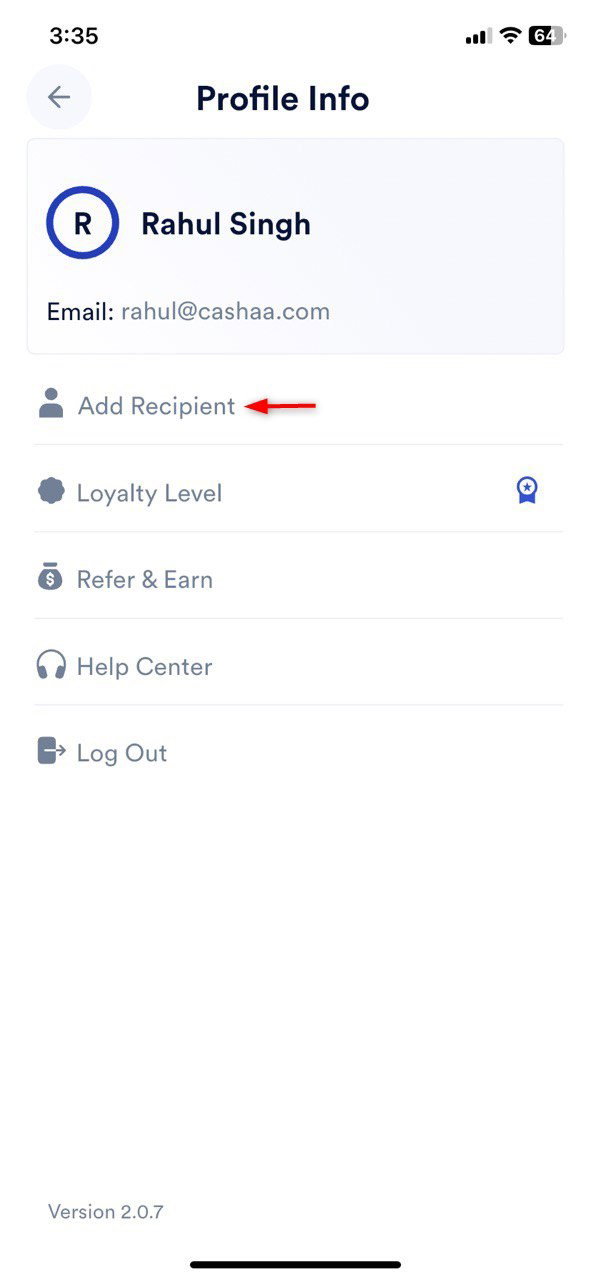
Click on ‘Add Recipient’ in the Profile Info section, as shown in the image below.
- 3
Step 3:
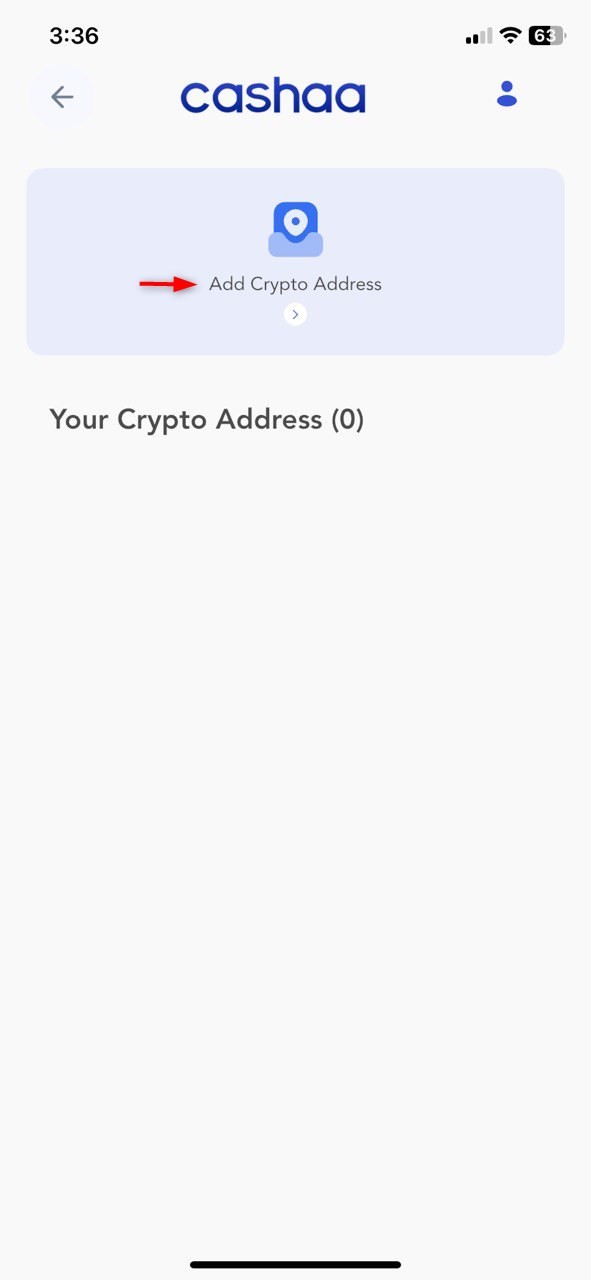
Tap on ‘Add Crypto Address’ at the top of the screen. Please refer to the image below.
- 4
Step 4:
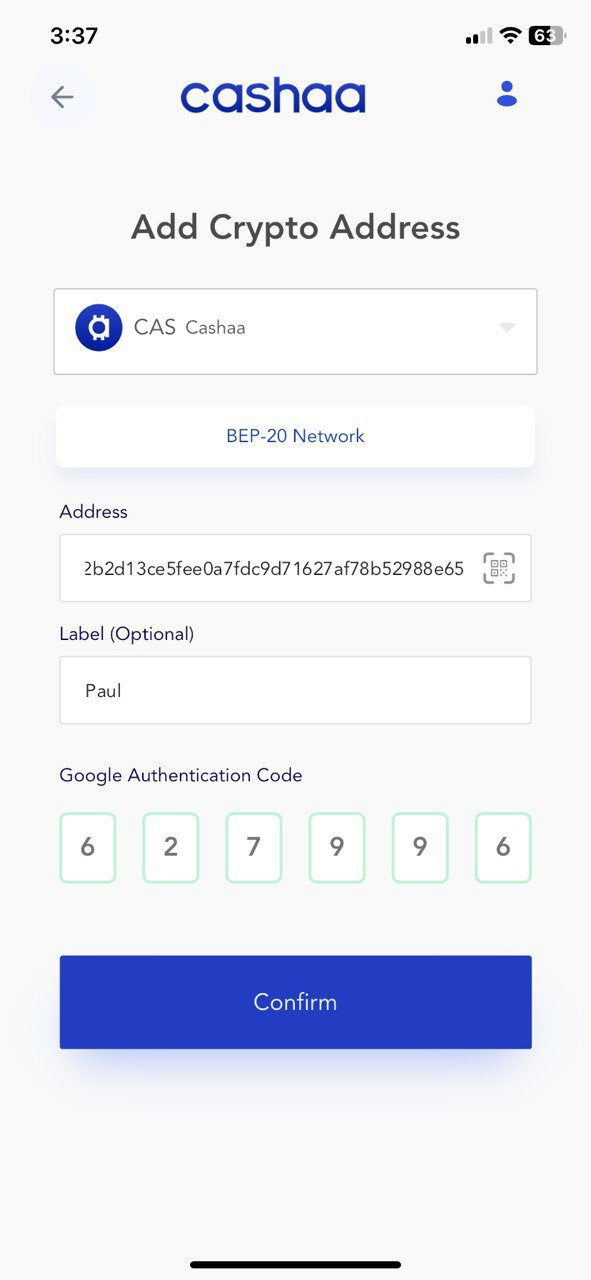
Fill in the wallet address according to the token’s blockchain network, along with the recipient’s other details, and click ‘Confirm’. Please refer to the image below:
Note: If 2FA is not enabled, you will see a warning message prompting you to enable it first.
 5
5Step 5:
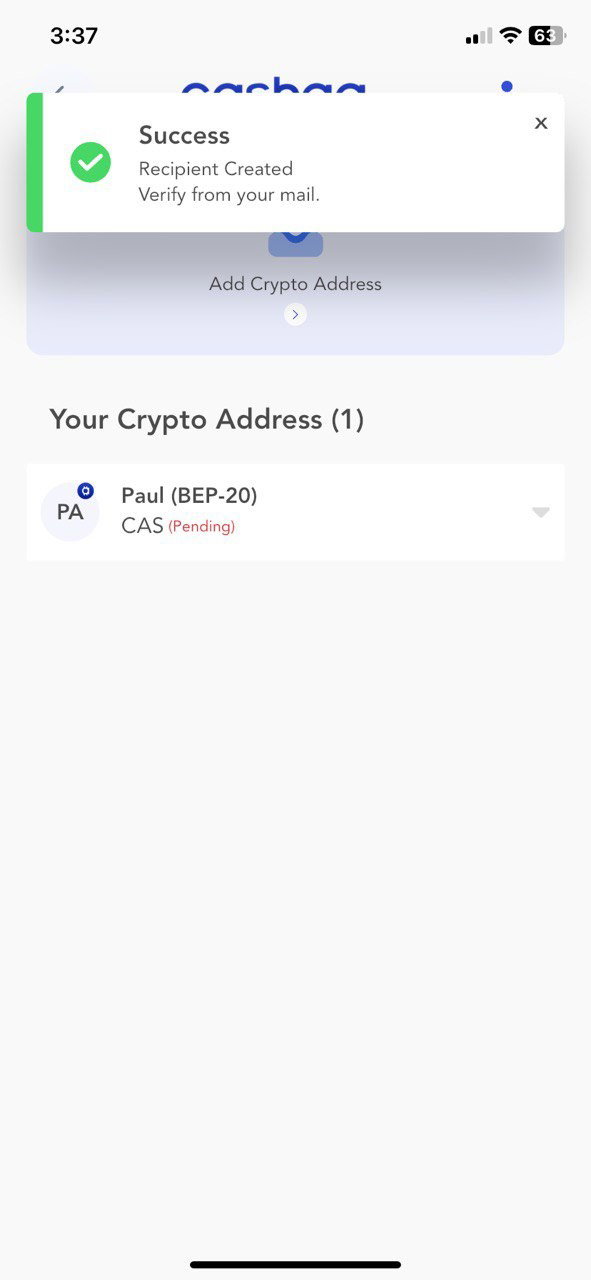
Your recipient will appear on your dashboard, as shown in the image below. You will then need to verify the email before sending cryptocurrencies.
 6
6Step 6:
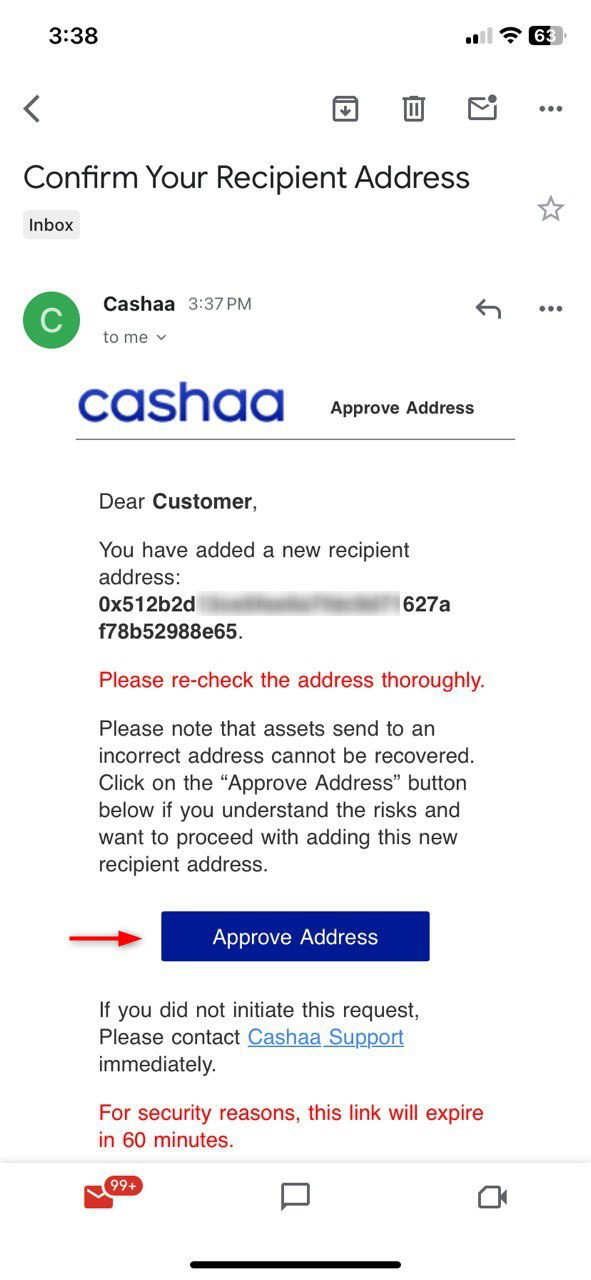
You will receive a confirmation link in your email for address verification. Please click on ‘Approve Address,’ as shown in the image below.
Note: If you did not receive the confirmation link automatically in your email, click the arrow and select 'Verify CAS Address, as shown in the image below.
 7
7Step 7:
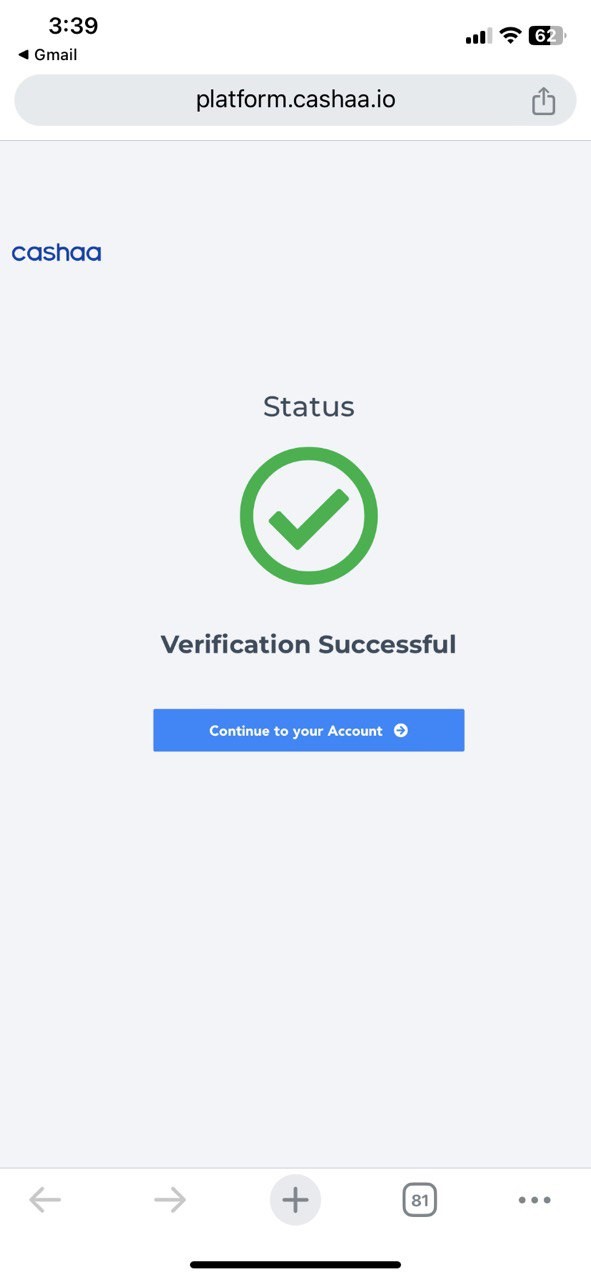
After clicking ‘Approve Address’, you will be redirected to a web page that shows ‘Verification Successful’. Once this appears, please return to the app.
 8
8Step 8:
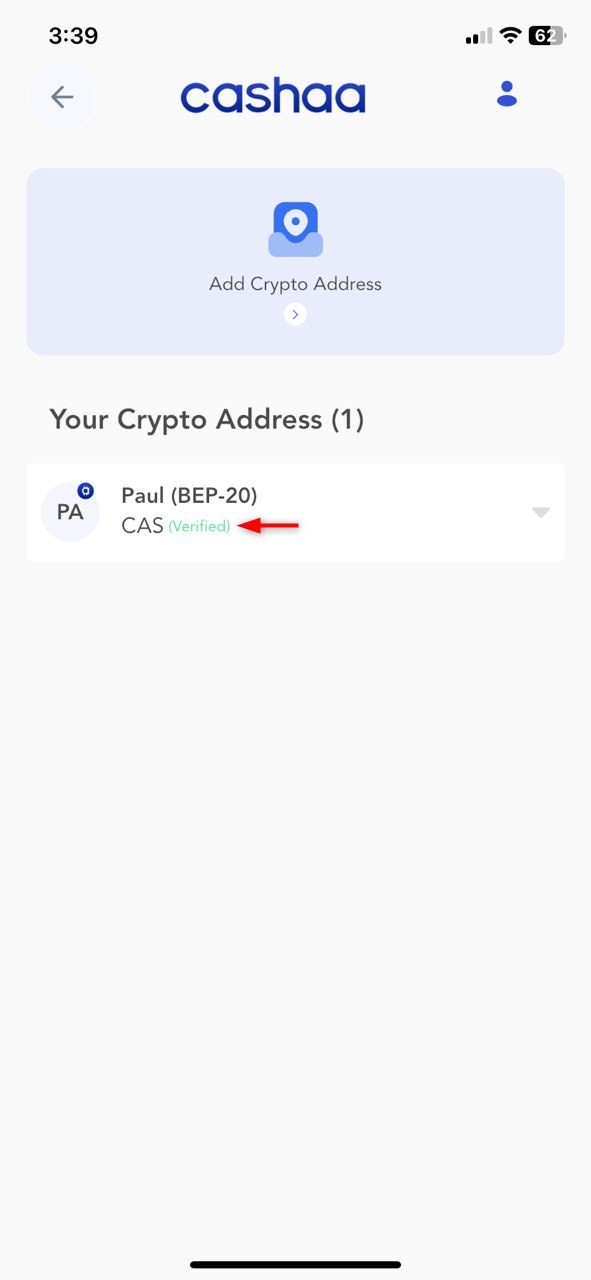
Congratulations! You have successfully added and verified your recipient. You can now send cryptocurrency. Please refer to the image below:
Note: If your recipient is still marked as pending after email verification, simply return to the previous screen and then come back to refresh the status.
Was this helpful?
Quick feedback helps us improve.
Related articles