
How to Change the Email Address on your Cashaa App
1 min read6 stepsUpdated Jul 14, 2025
- 1
Step 1:
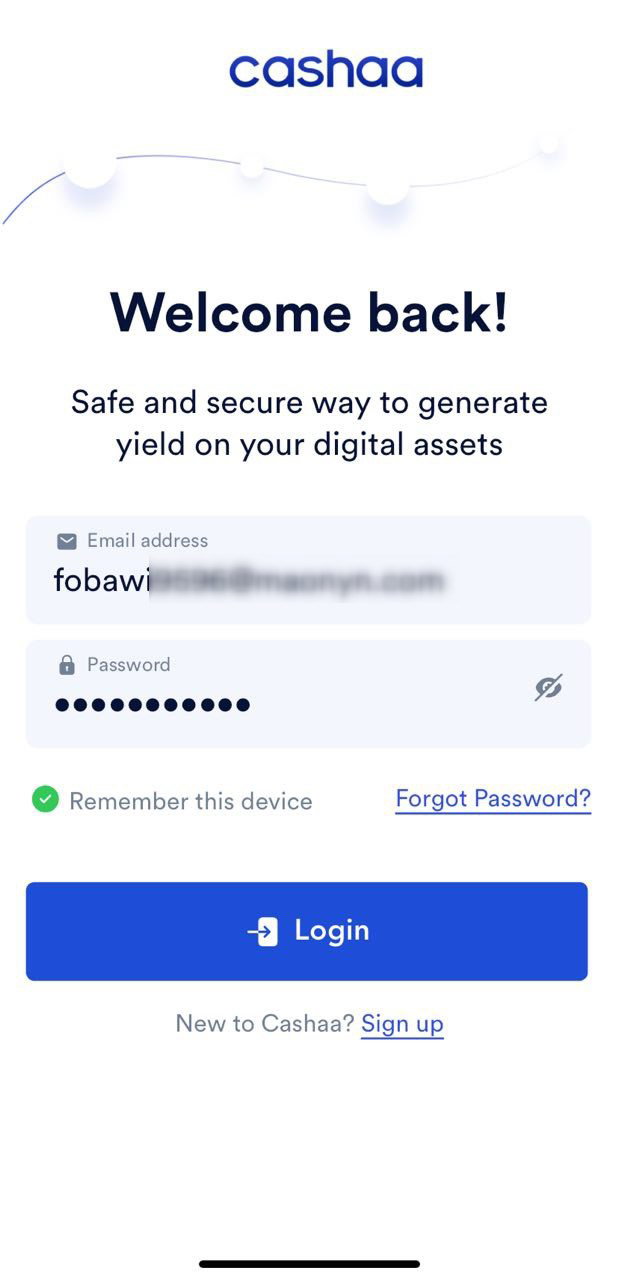
Log in to your Cashaa app using your existing email address and password.
- 2
Step 2:
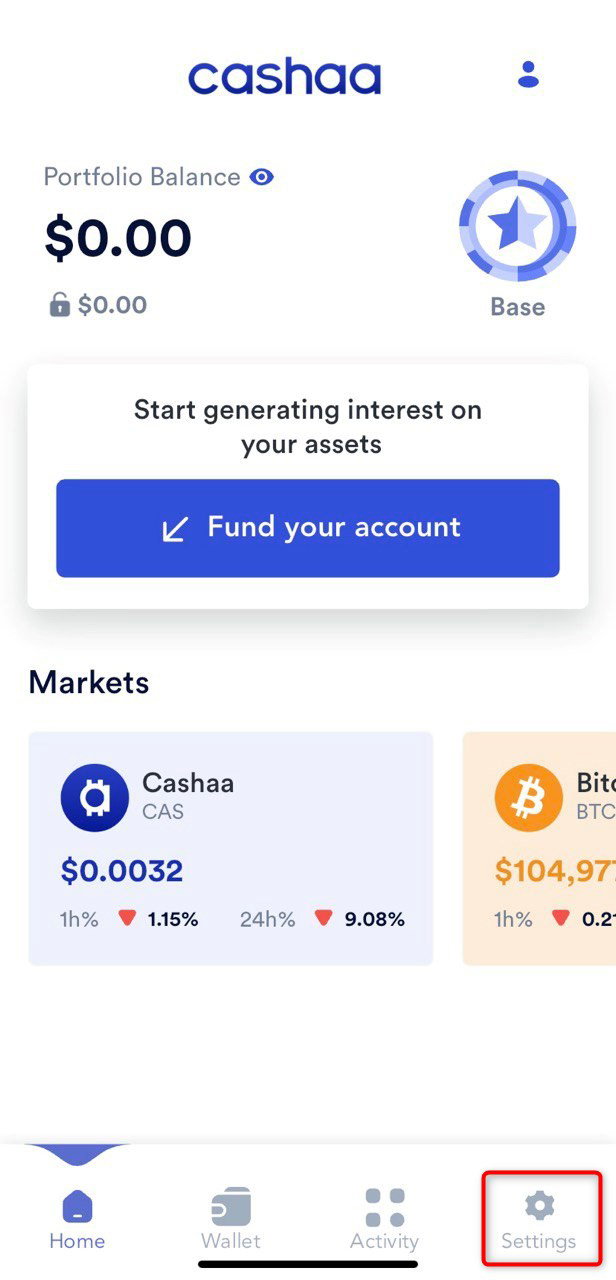
From the dashboard, navigate to Settings (refer to the image below for guidance).
- 3
Step 3:
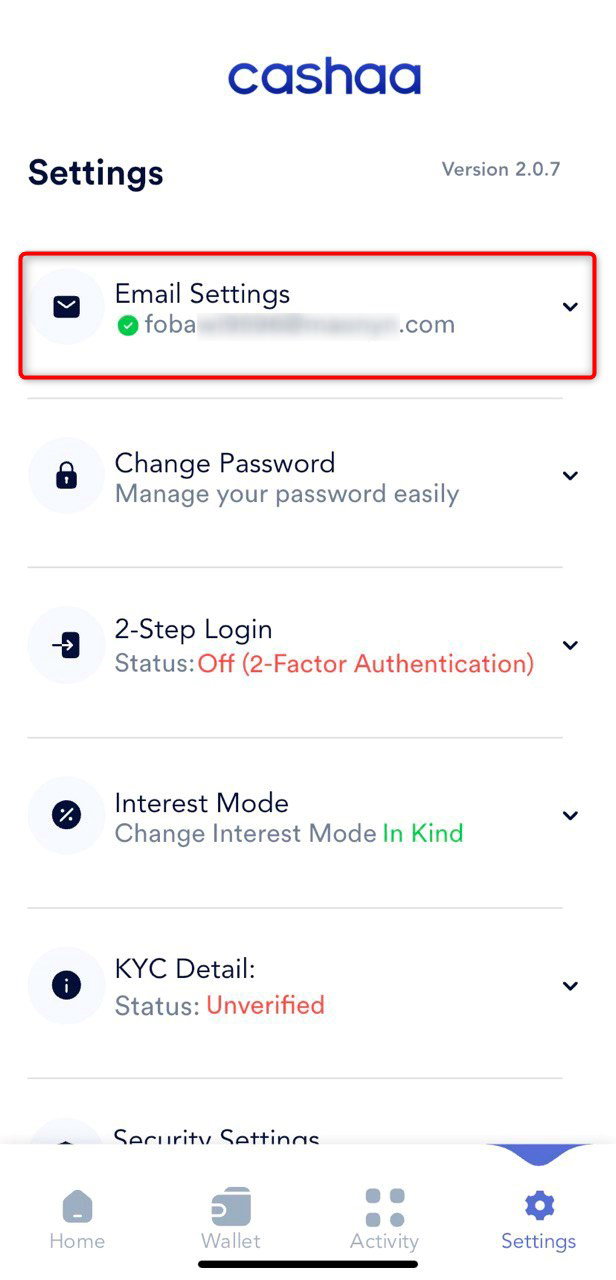
Go to the Email Settings section and select Change Email Address.
- 4
Step 4:
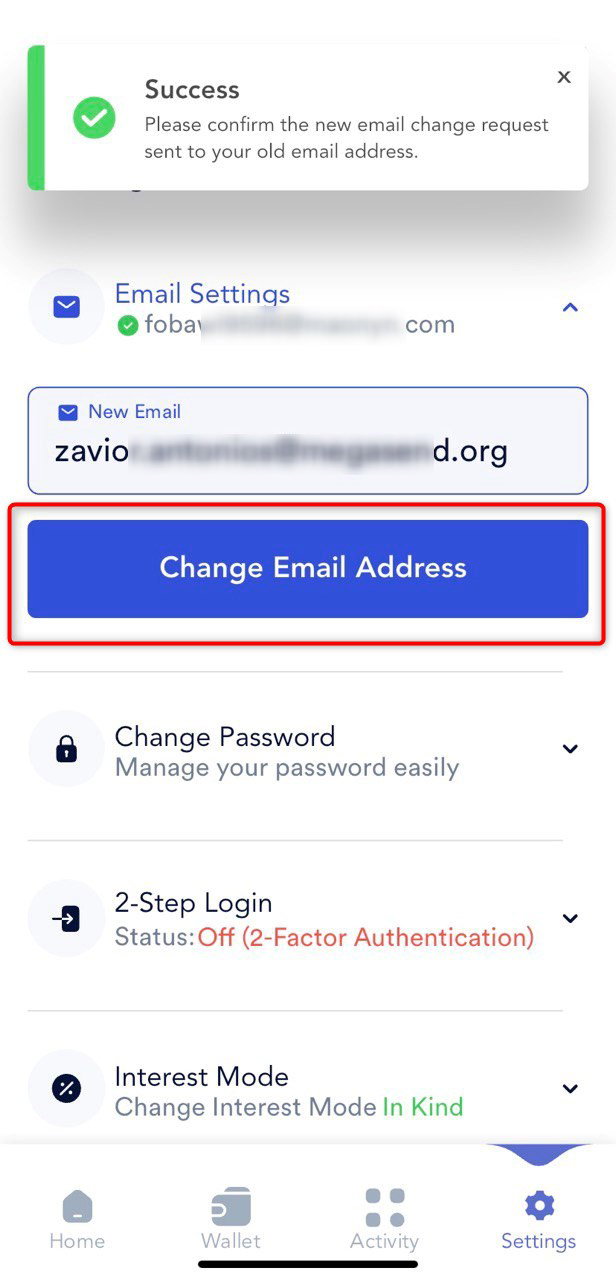
Add your new email address in the provided field. Click on Change Email Address to receive an email verification link at your current registered email address (see the image below).
- 5
Step 5:
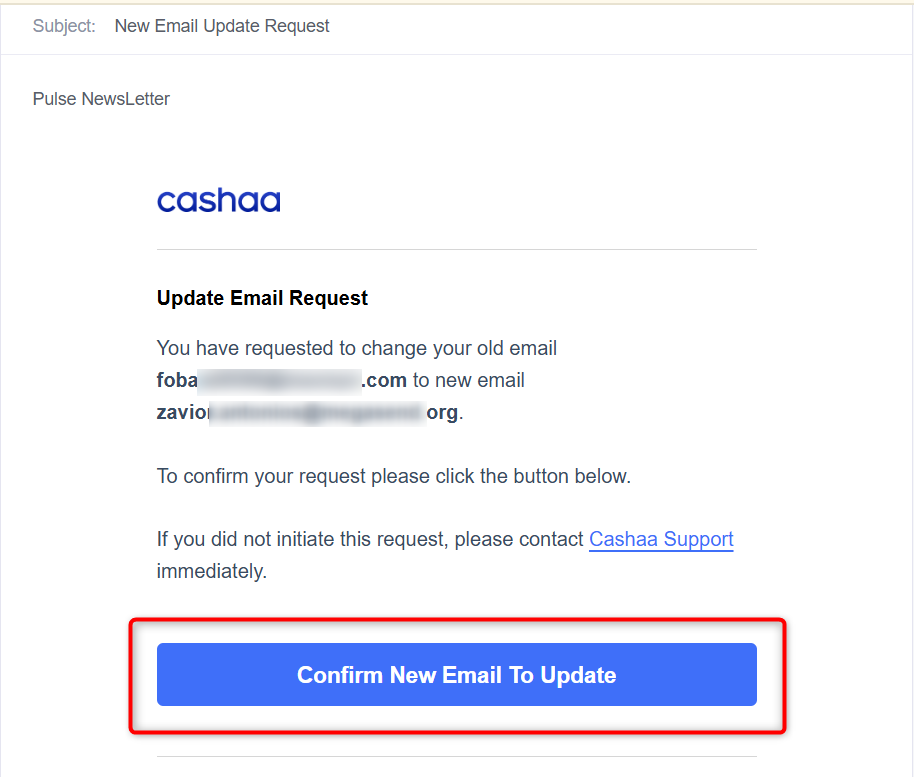
Open your current email inbox and look for the email address update link. Click on the Update Email Address button in the email.
- 6
Step 6:
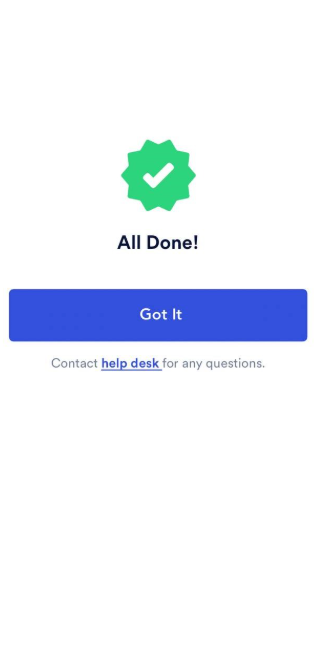
Once confirmed, your email address will be successfully updated. You will be logged out of the platform and prompted to log in again using your new email address.
Was this helpful?
Quick feedback helps us improve.