
How to Enable your 2FA on the Cashaa App
1 min read7 stepsUpdated Jul 14, 2025
Steps to Enable 2-Factor Authentication (2FA)
Prerequisite : Ensure the Google Authenticator app is installed on your Android or iPhone device before proceeding.
- 1
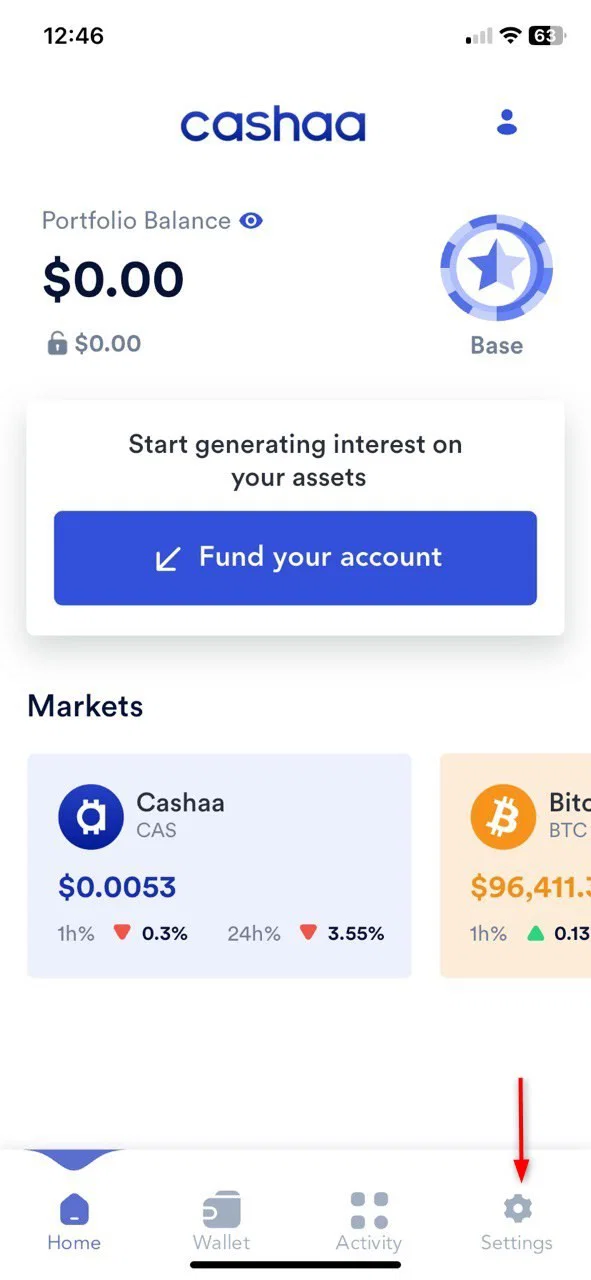
Step 1:
Log In to your Cashaa App and navigate to Settings (refer to the image below for guidance).
- 2
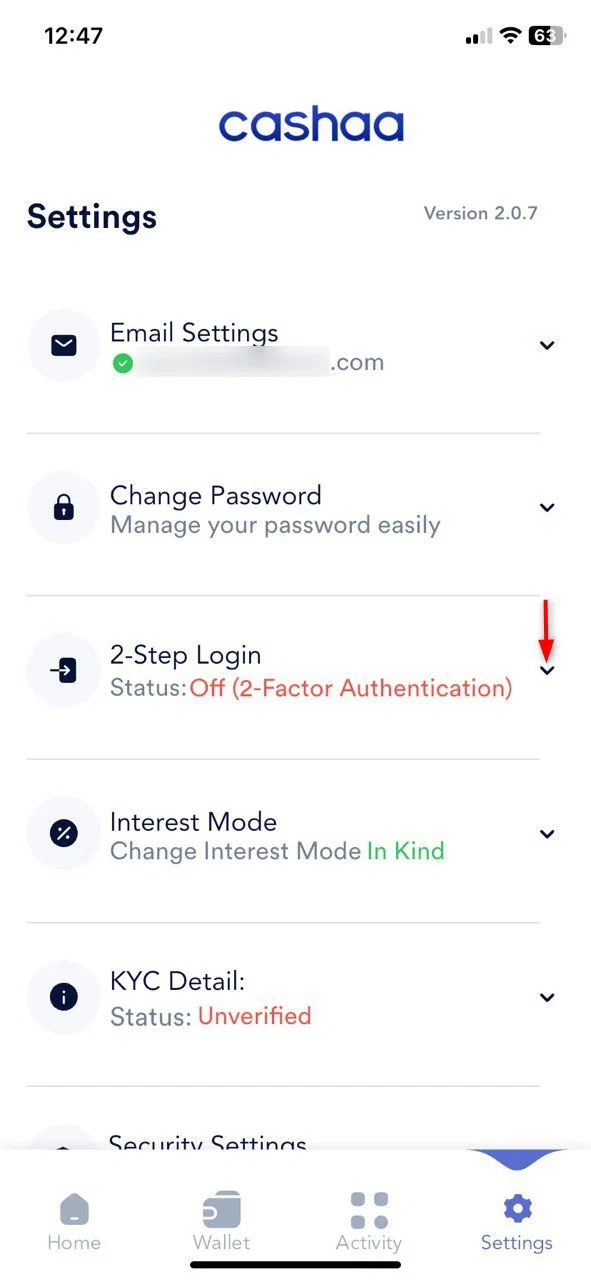
Step 2:
Scroll down to the 2-Step Login section and click to enable 2-Factor Authentication.
- 3
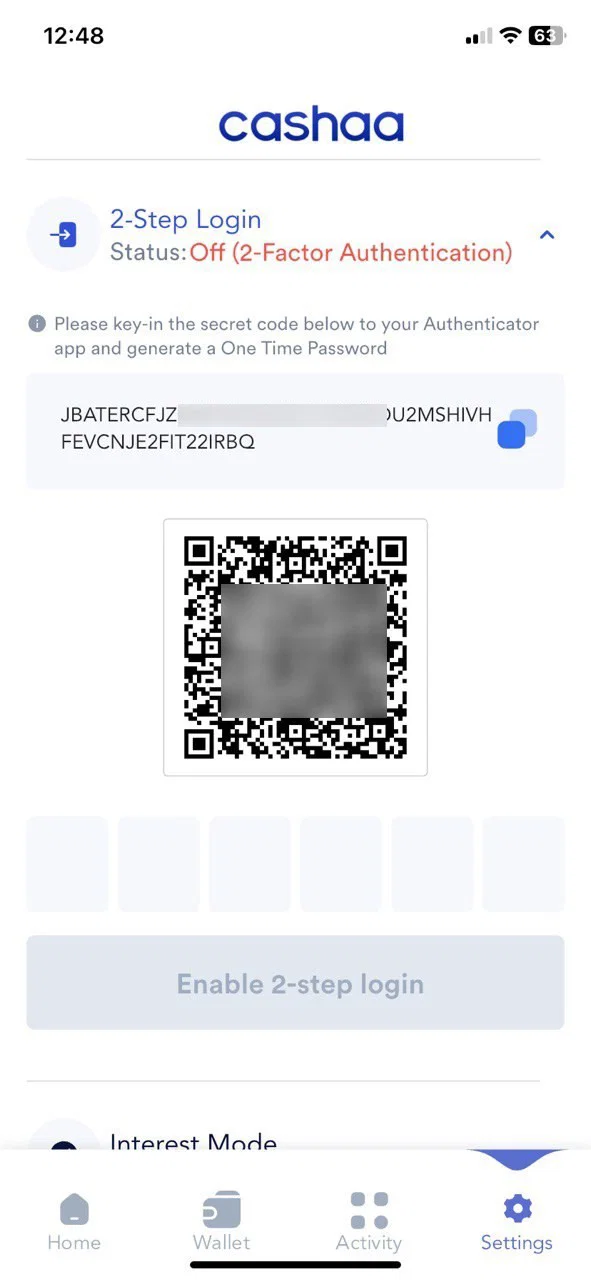
Step 3:
Tap on Enable 2-Step Login as shown in the image below.
- 4
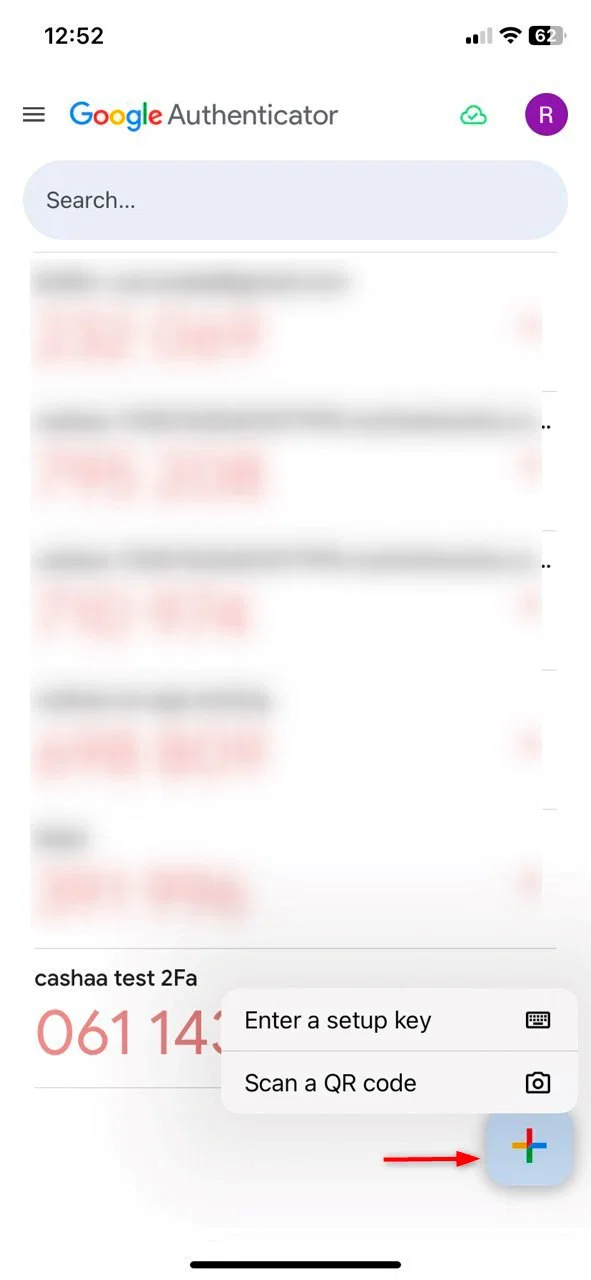
 Step 4:
Set Up Google Authenticator
- • Open the Google Authenticator app on your device.
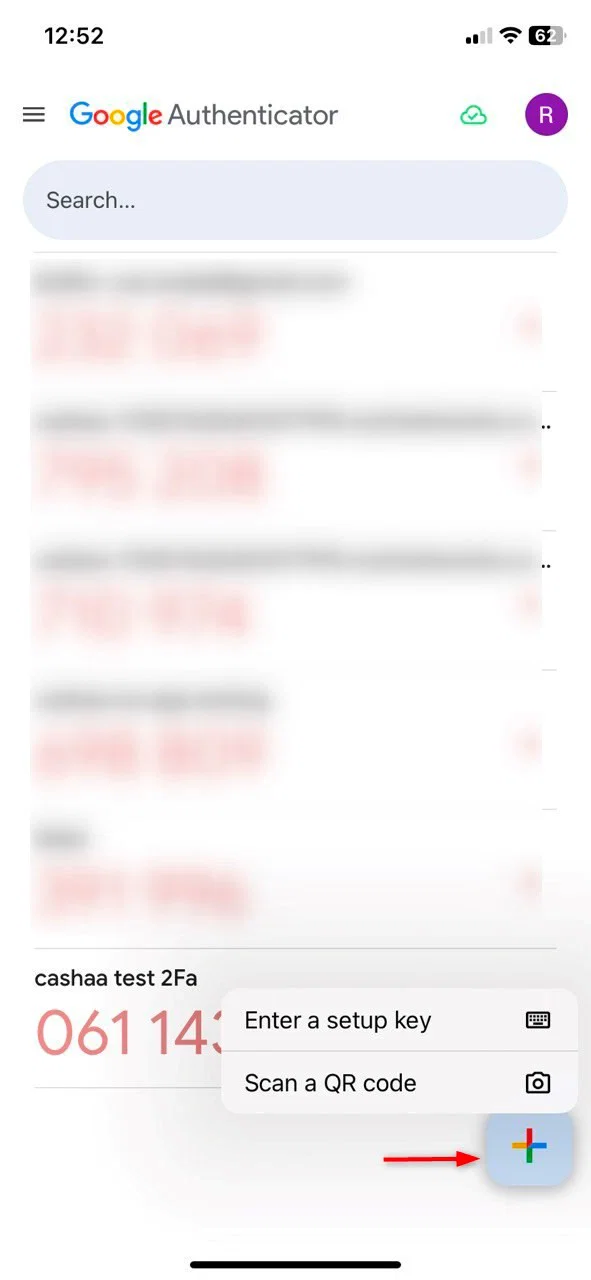 5• Scan the QR code or enter Security code manually available on the Cashaa platform to generate a 6-digit verification code.6• Enter the generated code into the corresponding field on the platform (see the image for reference).7
Step 5:
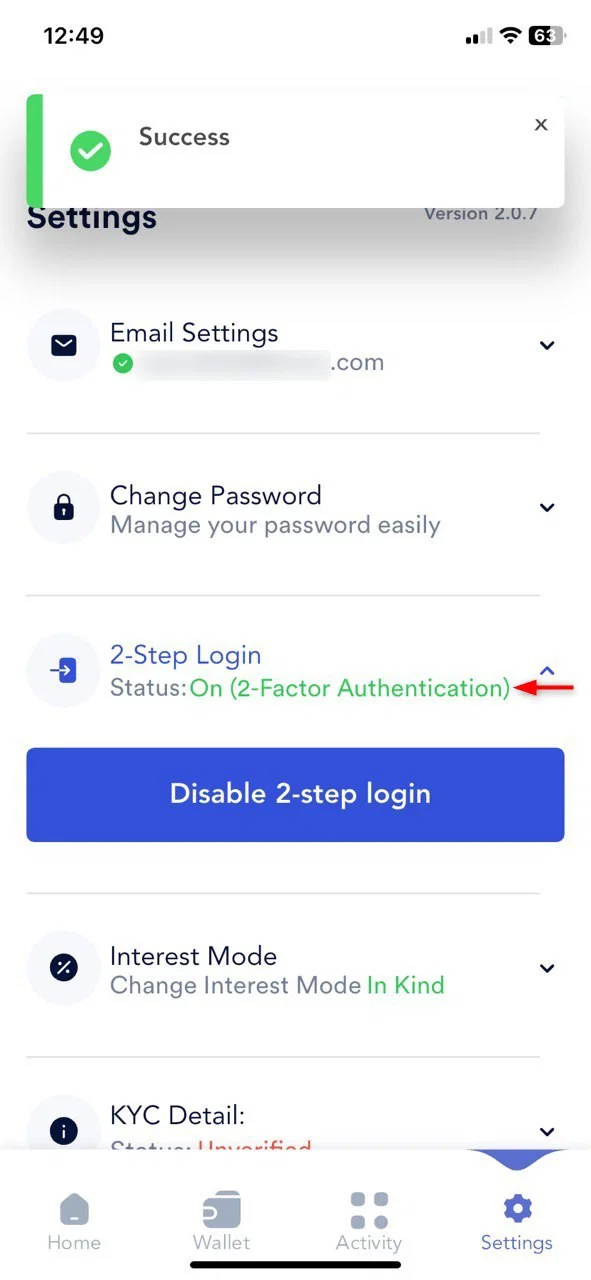
Once you’ve entered the code, your 2FA will be successfully enabled. From now on, you’ll need to use the 6-digit code from Google Authenticator every time you log in. Remember, the code changes periodically and remains valid for a few seconds.
Was this helpful?
Quick feedback helps us improve.
Related articles